Connect Codex
Codex is OpenAI's coding agent. It comes with your ChatGPT plan, and Reelcraft can use it for text, image and browser steps instead of a paid API. The Codex program is already installed inside Reelcraft; you only sign it in once.
You need:
- a ChatGPT plan that includes Codex;
- for the easiest sign-in, BrowserOS Neo running and connected. Without Neo you can still sign in from any browser.
Connect
- In Reelcraft, open Settings. Find the Codex card and click Connect Codex.
- Reelcraft asks OpenAI for a one-time sign-in code, then opens OpenAI's sign-in page in BrowserOS Neo and types the code for you.
- Switch to BrowserOS Neo. Check that the page is OpenAI's (
auth.openai.com) and approve the sign-in. Reelcraft never clicks this button for you. - Back in Reelcraft, the Codex card changes to Connected within a few seconds.
If the OpenAI page asks you to sign in first, sign in to your OpenAI account in that Neo tab, then enter the code that Reelcraft shows and approve.
Without BrowserOS Neo
If Neo isn't running, or can't enter the code, the Codex card shows a link and a code instead:
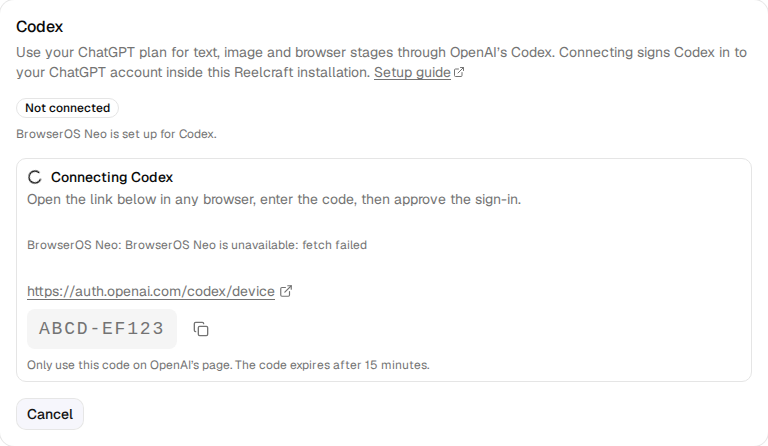
- Click the link, or open it in any browser on any device.
- Sign in to your OpenAI account if asked.
- Enter the code (the copy button next to it copies it), and approve the sign-in.
Only enter the code on OpenAI's own page. It expires after 15 minutes; if it does, click Connect Codex again. Click Cancel to stop a sign-in.
What "Connected" shows
Once connected, the Codex card lists what Codex can do in Reelcraft:
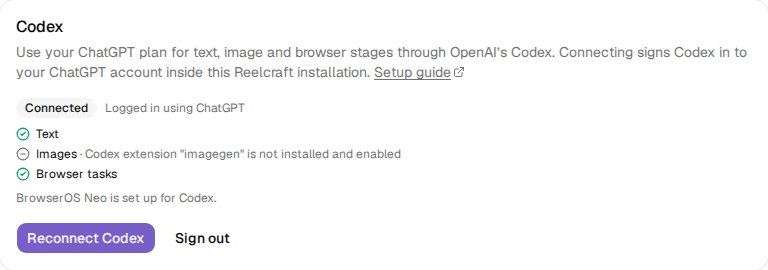
- Text: available as soon as Codex is connected.
- Images: uses Codex's built-in image generation (older Codex versions need the
imagegenextension instead). If it is off, the line shows the reason. - Browser tasks: needs BrowserOS Neo. Reelcraft registers Neo with Codex for you when you connect Codex or save the Neo address, and the card says BrowserOS Neo is set up for Codex. Neo must also be running.
To stop using your ChatGPT plan in Reelcraft, click Sign out. Reconnect Codex signs in again, for example with a different account.
The sign-in is kept in your volume (/data/codex), so it survives restarts and updates.
Signing in from a terminal
If the Settings page doesn't work for you, you can sign in with a command instead. Open a terminal (PowerShell on Windows) and run:
docker exec -it -u reelcraft reelcraft codex login --device-auth
It prints the same link and code. This assumes your container is named reelcraft.