Add AI provider keys
Reelcraft uses paid AI services through API keys: secret codes from each service that let Reelcraft use your account. You only need keys for the services you want. Without any, Reelcraft uses its free test provider.
The services
| Service | Used for | Get a key |
|---|---|---|
| OpenRouter | Text and image models from many vendors, through one key | openrouter.ai/settings/keys |
| fal | Image and video generation | fal.ai/dashboard/keys |
| ElevenLabs | Voice-over (text to speech) | ElevenLabs API keys |
| Deepgram | Voice-over, transcription and captions | console.deepgram.com |
Each service bills you directly for what Reelcraft uses. Most let you set a spending limit on their website, which is a good idea.
ElevenLabs key permissions
An ElevenLabs key can be restricted to some permissions. For Generate Speech it needs Text to Speech; Voices: Read lets Reelcraft list your voices, Models: Read lists the models your account can use, and Pronunciation Dictionaries: Read lists your dictionaries. Test tells you when a working key lacks one of these. Without Voices: Read you can still run speech by pasting a voice ID in the voice picker. The simplest choice is a key with no restrictions.
Add a key
- In Reelcraft, click Settings in the sidebar.
- Under AI providers, find the service and click Get a key to open its website. Create a key there and copy it.
- Paste the key into the box next to the service and click Save.
- Click Test to check that the key works. You see The key works. or the reason it doesn't, and for an ElevenLabs key a warning if it lacks a permission Reelcraft uses. (fal has no test; its key is checked the first time you use it.)
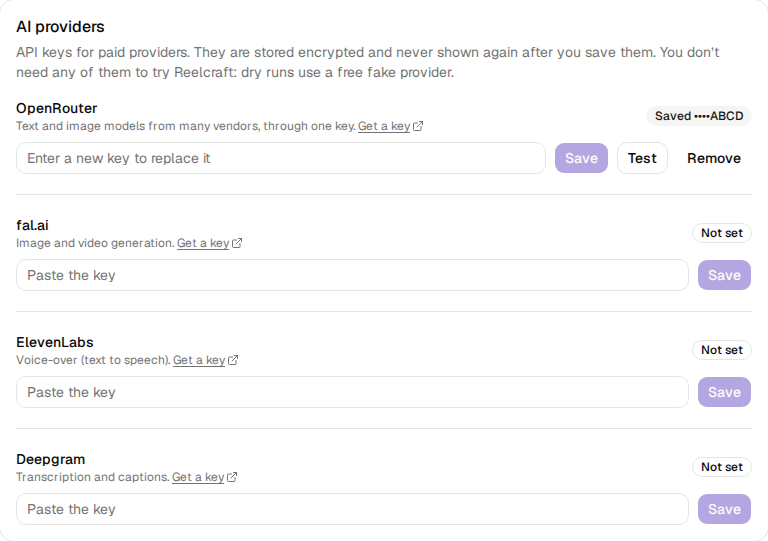
The key takes effect straight away; there is no need to restart Reelcraft.
After saving, the badge says Saved with the key's last four characters. Reelcraft never shows the whole key again. To change it, paste a new key and click Save. To remove it, click Remove.
How keys are stored
Saved keys are encrypted in Reelcraft's database. The encryption key is generated on the first
start and kept in /data/secrets.env, inside your volume. Backups of the volume therefore include
both, so back up the whole volume.
If that file is lost or replaced, saved keys can't be read any more. Their badge then says Saved key can't be read: click Remove, then paste the key again.
Setting keys when the container starts
You can also give keys to the container as environment variables. This is useful if you manage Reelcraft with scripts. A key set this way takes priority over a saved one, and Settings shows it as Set by container environment, without a box to change it.
| Variable | Service |
|---|---|
OPENROUTER_API_KEY | OpenRouter |
FAL_KEY | fal |
ELEVENLABS_API_KEY | ElevenLabs |
DEEPGRAM_API_KEY | Deepgram |
VOICESTUDIO_API_KEY | VoiceStudio (only if VoiceStudio uses a key) |
In Docker Desktop, add them under Optional settings → Environment variables when you click
Run. On the command line, add -e NAME=value to docker run. Environment variables can only
be set when a container is created, so changing one means
recreating the container with the same volume.
Anyone who can open Reelcraft can use these keys. Keep Reelcraft on your own computer or a trusted network.