Channels
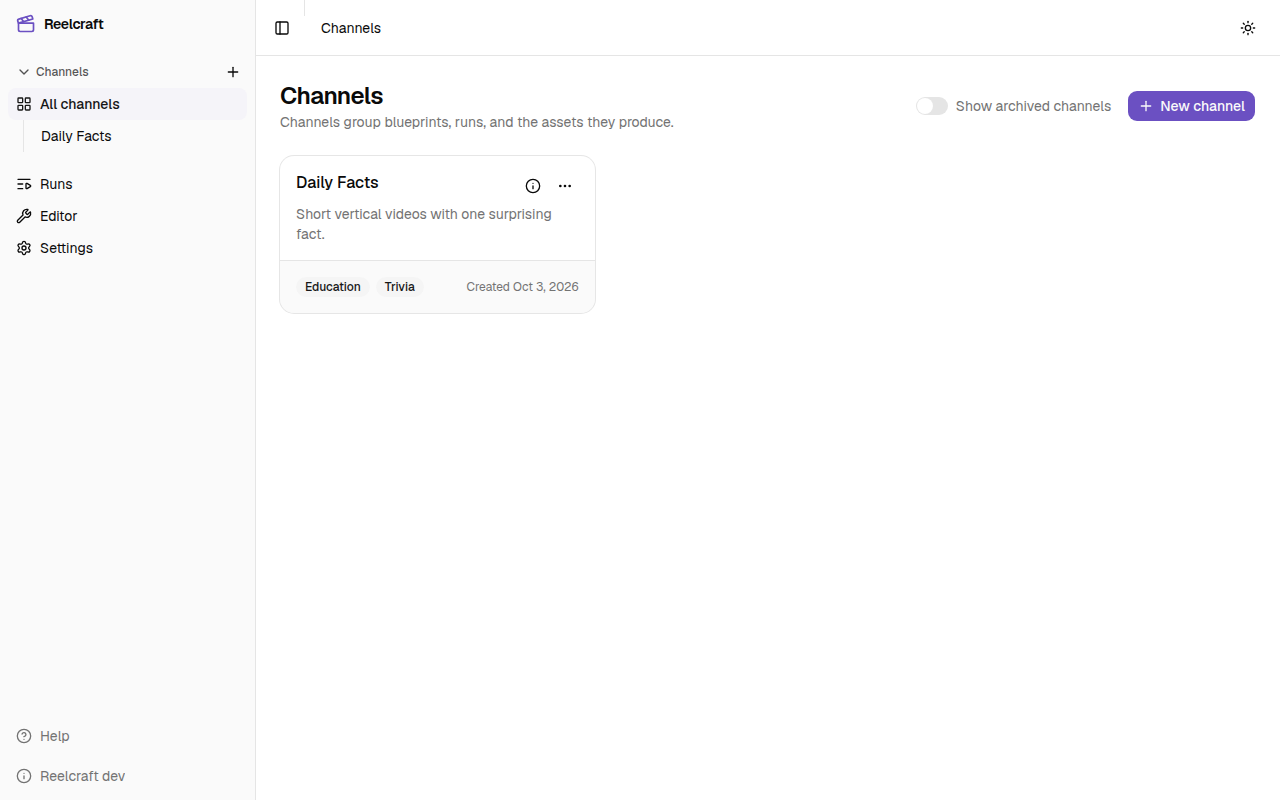
A channel is the home for one kind of video you make, such as a YouTube channel or a series of reels. Everything you build for it lives inside it: its blueprints, characters, assets and runs. Two channels never share any of these.
Create a channel
- Open Channels in the sidebar.
- Select New channel.
- Fill in the form:
- Name: required.
- Description: optional, up to 255 characters. The counter under the box shows how many you've used.
- Themes: optional labels such as
Comedy, Motivational. Separate them with commas. They're shown on the channel's card to help you tell channels apart. Reelcraft doesn't use them for anything else. - Defaults: optional settings every blueprint in the channel starts from, such as a default model. See Defaults.
- Select Create.
If the channel can't be saved, the reason is shown above the Create button and the form stays open, so you can fix it and try again.
The channel page
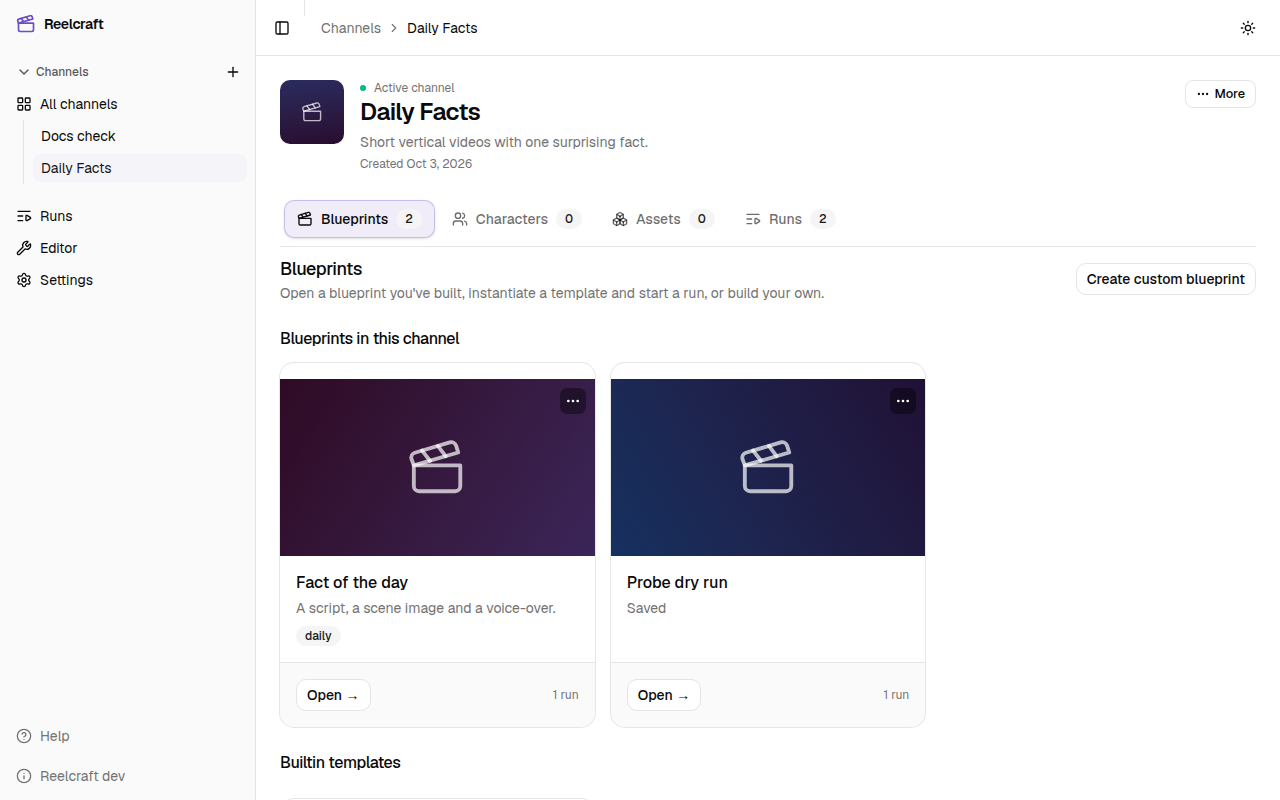
Select a channel's card to open its page. Its tabs show how many of each item it has:
| Tab | What's there |
|---|---|
| Blueprints | The recipes for your videos. See Blueprints. |
| Characters | People or mascots that appear in your videos. See Characters. |
| Assets | Images, video and audio you upload to reuse. See Assets. |
| Runs | Every run of this channel's blueprints. See Runs list. |
Edit a channel
On the channel page, open More and select Edit. You can also select the ⋯ button on the channel's card in the Channels list. Change what you need, then select Save changes.
The ⓘ button on a card shows the channel's details without editing them.
Archive a channel
Archiving hides a channel from the Channels list without changing anything else. Its blueprints, runs and files stay as they are.
- Open More on the channel page, or ⋯ on its card, and select Archive.
- Confirm with Archive.
To see archived channels, turn on Show archived channels at the top of the Channels list. Archived channels show an Archived badge. To bring one back, select Unarchive in the same menu.
Delete a channel
Deleting a channel permanently removes it and everything in it: every blueprint and version, every run and its outputs, every character and every asset. It can't be undone.
- Open More on the channel page, or ⋯ on its card, and select Delete.
- Type the channel's name exactly as shown.
- Select Delete permanently.
You return to the Channels list, with a message saying the channel was deleted.
You can't delete a channel while any of its runs is still going, including runs that are paused or waiting for you. Finish or cancel those runs first. See Pause, resume and cancel.
The files the channel's runs made, and the files you uploaded, are removed from storage in the background. By default that happens about 30 days after the delete.