Run Reelcraft
Reelcraft is published as the Docker image zohaibkhan97/reelcraft on Docker Hub, for both
Intel/AMD and Apple Silicon/ARM computers. Docker picks the right one for you.
You set two things when you start it:
- Port
8080: the address you open in your browser, http://localhost:8080. - A volume named
reelcraft-data, mounted at/data: where Reelcraft keeps everything you make, your settings and its database. Use the same volume every time you start Reelcraft, and your work is kept through updates.
- Docker Desktop (Windows, macOS, Linux)
- Command line
- In Docker Desktop, click the search bar at the top and type
zohaibkhan97/reelcraft. - Choose zohaibkhan97/reelcraft in the results and click Run. Docker Desktop downloads the image first; it is about a 1 GB download, so this takes a while the first time.
- In the dialog that opens, click Optional settings and fill in:
- Container name:
reelcraft - Ports → Host port:
8080 - Volumes → Host path:
reelcraft-data - Volumes → Container path:
/data
- Container name:
- Click Run.
- Open Containers in Docker Desktop's sidebar. When reelcraft shows as running, click its 8080:8080 link, or open http://localhost:8080 in your browser.
Open a terminal (PowerShell on Windows, Terminal on macOS) and run:
docker run -d --name reelcraft --restart unless-stopped \
  -p 8080:8080 -v reelcraft-data:/data \
  zohaibkhan97/reelcraft
On Linux with Docker Engine (not Docker Desktop), add
--add-host=host.docker.internal:host-gateway so Reelcraft can reach
BrowserOS Neo on your computer:
docker run -d --name reelcraft --restart unless-stopped \
  -p 8080:8080 -v reelcraft-data:/data \
  --add-host=host.docker.internal:host-gateway \
  zohaibkhan97/reelcraft
Then open http://localhost:8080.
On PowerShell, write the command on one line, or end each line with a backtick (`) instead
of \.
To let the free local Qwen3-TTS voices use an NVIDIA graphics card, start
Reelcraft from a terminal with --gpus all. Docker Desktop's Run button can't do that.
The first start
The first start takes one to three minutes: Reelcraft creates its database, and generates its
passwords and keys into /data/secrets.env. If the page doesn't load yet, wait a moment and
refresh. Later starts are faster.
When Reelcraft opens, you see its home screen with the sidebar on the left.
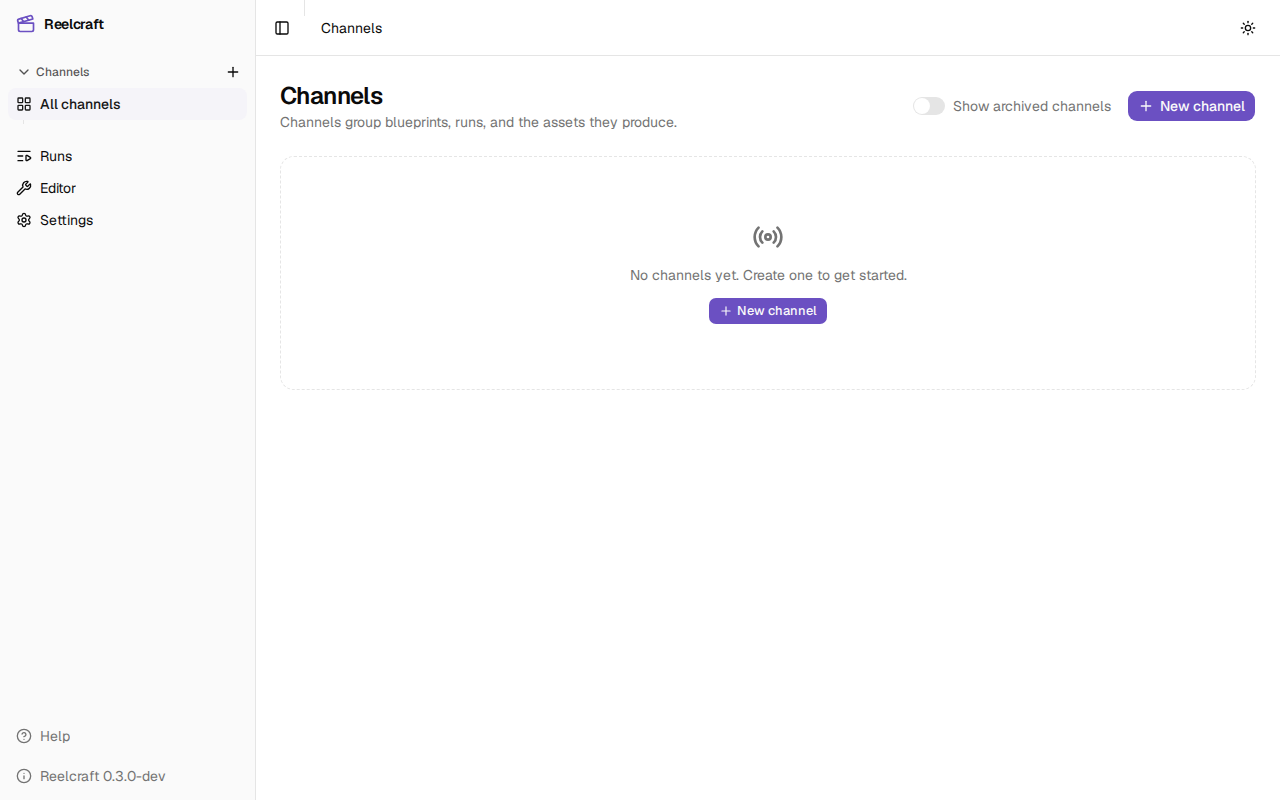
Everything works now with the free test provider. To make real videos, continue with AI provider keys.
Using a different port
If something else on your computer already uses port 8080, choose another host port, such as
8090, and open http://localhost:8090 instead. Only the host port changes; the container port
stays 8080 (-p 8090:8080 on the command line).
Starting and stopping
Reelcraft keeps running in the background until you stop it. In Docker Desktop, open
Containers and use the Stop and Start buttons next to reelcraft. On the command
line, use docker stop reelcraft and docker start reelcraft.
Stopping is safe: runs in progress pick up their current step again when Reelcraft starts.
Your projects, media, settings and saved keys live in the reelcraft-data volume, not in the
container. You can delete and recreate the container at any time. Deleting the volume deletes
everything.