Blueprints
A blueprint is the recipe for a video. It's a dependency graph of stages. Each stage does one job, such as writing a script, making images, recording a voice-over or putting the video together. Each stage can use the outputs of the stages before it.
You build a blueprint once, then run it as often as you like, with different inputs each time.
Create a blueprint
- Open a channel and select the Blueprints tab.
- Select Create custom blueprint.
- Enter a Blueprint name and select Create blank blueprint. Or select Import package… to add a blueprint someone sent you. See Sharing blueprints.
The blueprint's canvas opens, ready for its first stage.
Blueprint names must be unique within a channel. If the name is taken, you'll see A blueprint named "…" already exists in this channel and an Open it button that takes you to the existing one.
The canvas
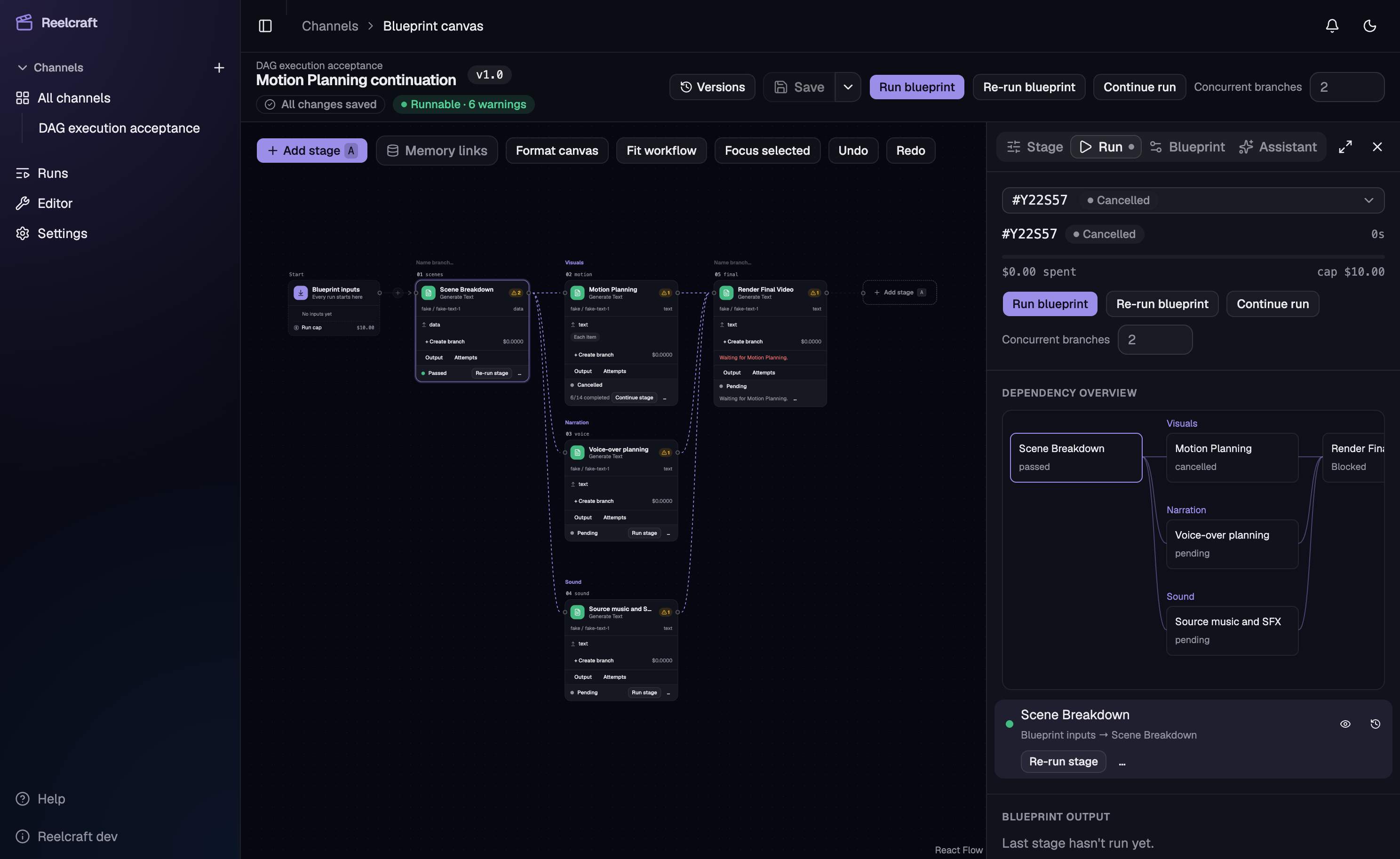
The canvas is where you build the blueprint. It fills the page, with a bar across the top and one panel on the right.
The top bar shows:
- the blueprint's name and the latest saved version, such as
v1.2; - whether you have Unsaved changes or All changes saved;
- whether the blueprint is Runnable or Not runnable yet, with how many problems it has;
- Versions, Discard, Save and Run.
See Versions for saving, and Starting a run for Run.
The canvas itself shows the blueprint from left to right:
- The Start card, Blueprint inputs, lists the inputs a run asks for, the role and the run cap. Select it to open the Blueprint tab.
- One card for each stage. Connections show dependencies; independent branches can run together.
- An Add stage card at the end.
Drag the canvas to move around. Scroll to move, and pinch or hold Ctrl (or ⌘) and scroll to zoom.
Format canvas arranges nodes in dependency layers. Fit workflow shows the complete graph; Focus selected centers the selected stage. Drag cards freely to place them wherever you prefer. Position changes never change dependencies or make artifacts stale. Layout and branch names are shared with the blueprint and retained in drafts, saved versions, and exported packages. Undo and Redo restore position, Format, connection, branch-name, and enable/disable edits.
The panel on the right has tabs for stage configuration, execution details, runs, blueprint settings, and the assistant:
- Stage: the settings of the selected stage. See Stages.
- Details: linked Output, Attempts, Inputs & dependencies, and Memory views for a stage.
- Assistant: help editing the blueprint.
- Run: the selected run, for trying stages out. See Canvas runs.
- Blueprint: the run cap, inputs, the character role and defaults. See Blueprint settings.
Select ✕ to hide the panel, and Panel to bring it back. Drag the panel divider or focus it and press the arrow keys to resize it. The expand button makes it wider.
Add a stage
Select Add stage at the top left of the canvas, or press A, and pick a stage type from the list, such as Generate Text. Type to search. See Stage types for what each one does.
To put a stage in the middle of the blueprint, hover between two cards and select the + that appears, then pick a type. The list says where it will go, for example Inserted between Write script and Plan shots.
A stage added at the end goes after the last card. Its label is the stage type's name, such as
Generate Text, or Generate Text 2 if that label is taken. Its key is stage-1, stage-2, and
so on.
Open a stage
Select a stage's card. Its settings open in the Stage tab. See Stages.
Read the cards
Each card shows:
- the stage's label and type, with its key above it;
- its model/provider, with full details on hover or keyboard focus;
- the inputs it takes and the output it makes, and the memory keys it writes;
- what it does beyond the basics: Each item, Approval, QC, its checks, and If … when it only runs on a condition;
- its problems, if it has any: ✗ with the number of errors, ⚠ with the number of warnings;
- once there's a run, its status, duration, cost, item progress and eligible execution action;
- the specific failure or blocking reason, including the responsible upstream stage;
- Output and Attempts shortcuts into the same details workspace.
Execution connections join prerequisite stages to their consumers, including branches and joins. Dashed purple lines show memory: a value one stage saves and a later stage reads, labelled with its key. A red dashed line means two stages write the same memory key, which you'll need to fix. Memory links are hidden by default; turn Memory links on to inspect them. See Connecting stages.
Connect stages and name branches
Select Create branch on B to add a new stage after B without changing an existing B → C branch. Drag from a stage's right output handle to another stage's left input handle to add an execution dependency. Self-connections and cycles are rejected. The inspector also provides keyboard-accessible Add dependency and Disconnect… selectors.
Select a connection and choose Disconnect / edit binding, or use Delete on a selected connection. An input, context, iteration, check, or memory binding still creates a dependency: remove or replace that binding in the inspector before disconnecting it. Existing positional references are preserved explicitly when connection editing changes graph order.
Enter a label in Name branch… above its first stage. Branch names also appear in the Run tab's compact dependency overview. Renaming a branch changes presentation only.
Temporarily disable a stage
Uncheck Stage enabled in its inspector. Blueprint execution skips the stage. Every descendant shows a validation error naming the disabled ancestor; whole-blueprint execution is blocked until those errors are resolved. Independent branches remain eligible for stage-only execution.
The disabled stage can still Run, Continue, or Re-run explicitly when its prerequisites and inputs are ready. Its outputs remain stored and inspectable, but direct output references and memory cannot consume them until it is enabled again. Re-enabling restores compatible output availability; it does not run descendants or clear unrelated stale reasons. Re-running still stales affected descendants. Changes to an existing run use an explicit, revision-bound execution plan; active runs retain their snapshot.
Delete a stage
Hover over the card and select the bin, or select the bin at the top of the Stage tab. There's no confirmation, and nothing is saved until you save. A message appears with Undo. You can also select Discard to go back to your last save, which discards all your unsaved changes, not only the delete.
Edit a blueprint's details
On the Blueprints tab, open the ⋯ menu on the blueprint's card and select Edit details. You can change its Name, Description and Tags (comma-separated). They're shown on the card. Changing the name doesn't change any version.
Each card also shows the poster from the blueprint's latest finished video, if there is one, and how many runs it has had. Select Open → to open its canvas.
Archive a blueprint
Archiving hides a blueprint from the Blueprints tab. Nothing else changes: its versions and runs stay as they are, and you can still open it.
- To archive one, open ⋯ on its card and select Archive.
- To see archived blueprints, turn on Show archived at the top of the list. It shows how many there are. Archived blueprints show an Archived badge.
- To bring one back, select Unarchive in the same menu.
Delete a blueprint
Deleting a blueprint permanently removes it, every saved version, and every run made from it, including their outputs. It can't be undone.
- Open ⋯ on the blueprint's card and select Delete.
- Type the blueprint's name exactly as shown.
- Select Delete permanently.
You can't delete a blueprint while any of its runs is still going, including paused runs and runs waiting for you. Finish or cancel them first.
The files its runs made are removed from storage in the background, by default about 30 days later.