Update Reelcraft
Reelcraft checks for new versions every 6 hours. Most updates install from inside the app in a few clicks. Some need a newer Docker image, and the app tells you when.
Update from inside Reelcraft
When a new version is out, the bottom of the sidebar shows Update to X.Y.Z.
- Click Update to X.Y.Z. The Updates window shows the release notes.
- If any runs are in progress, the window warns you: the update restarts Reelcraft, and their current step starts again afterwards. You can wait for them to finish first.
- Click Update to X.Y.Z.
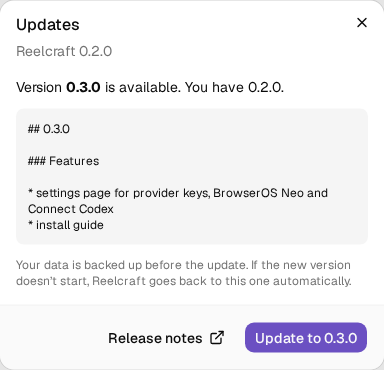
Reelcraft downloads the new version, checks its signature, backs up your database and restarts. This takes a few minutes, during which Reelcraft is unavailable. The page reloads by itself when it's done.
If the new version doesn't start within 5 minutes, Reelcraft restores the backup and goes back to the previous version on its own, and the Updates window says what went wrong.
Checking now
To check without waiting, click the version at the bottom of the sidebar, or open Settings → About and updates → Updates…, then click Check now.
Update to a new image
Some releases also change the Docker image itself, for example a new database or browser version. The sidebar then shows Version X.Y.Z available, and the Updates window lists these steps. Images older than 0.2.0 can't update themselves, so update those this way once.
Your projects, settings and keys are in the reelcraft-data volume, so they are kept when you
replace the container.
- Docker Desktop
- Command line
- Open Images, find zohaibkhan97/reelcraft, open its ⋮ menu and choose Pull. This
downloads the newest version (the
latesttag). - Open Containers. Stop the reelcraft container, then Delete it.
- Go back to Images and click Run next to zohaibkhan97/reelcraft.
- Under Optional settings, enter the same values as before: container name
reelcraft, host port8080, volumereelcraft-data→/data, and any environment variables you had set. - Click Run, wait a minute or two, and open http://localhost:8080.
docker pull zohaibkhan97/reelcraft
docker rm -f reelcraft
docker run -d --name reelcraft --restart unless-stopped \
  -p 8080:8080 -v reelcraft-data:/data \
  zohaibkhan97/reelcraft
Add the same -e and --add-host options you used before, if any.
Database changes are applied automatically when the new container starts.
Release notes
Every version's changes, and its image steps, are on GitHub Releases. The Release notes button in the Updates window opens them too.
Turning update checks off
Start the container with the environment variable REELCRAFT_UPDATES=off to stop update checks.
Reelcraft then makes no requests to GitHub, and you update by
moving to a new image when you choose.
Where updates and backups are kept
- Versions installed from inside the app are in
/data/app. A newer image always replaces them. - The last 3 database backups taken before updates are in
/data/backups. - The software and models of the local Qwen3-TTS voices, if you set them up, are in
/data/qwen-tts. Updates leave them alone, and your own backups leave them out.
These backups protect against a failed update. They don't replace your own backups.