Starting a run
A run is one go at making a video: Reelcraft carries out the blueprint's dependency graph, with the inputs and budget you give it. There are two kinds:
- Production runs run a saved version, exactly as it was saved. You start them from the blueprints page, as described here.
- Test runs run what's on the canvas while you build, saved or not. See Test runs on the canvas.
Before you start
- The blueprint must have at least one saved version that shows Runnable. See Versions.
- The models and keys it uses must be set up. See Models and AI provider keys.
- If it uses a character, the character must be Ready.
- If you only want to try it out without paying, do a dry run first.
Start a run
- Open the channel's Blueprints tab and select Run on the blueprint's card. (Run is off until the blueprint has been saved once.)
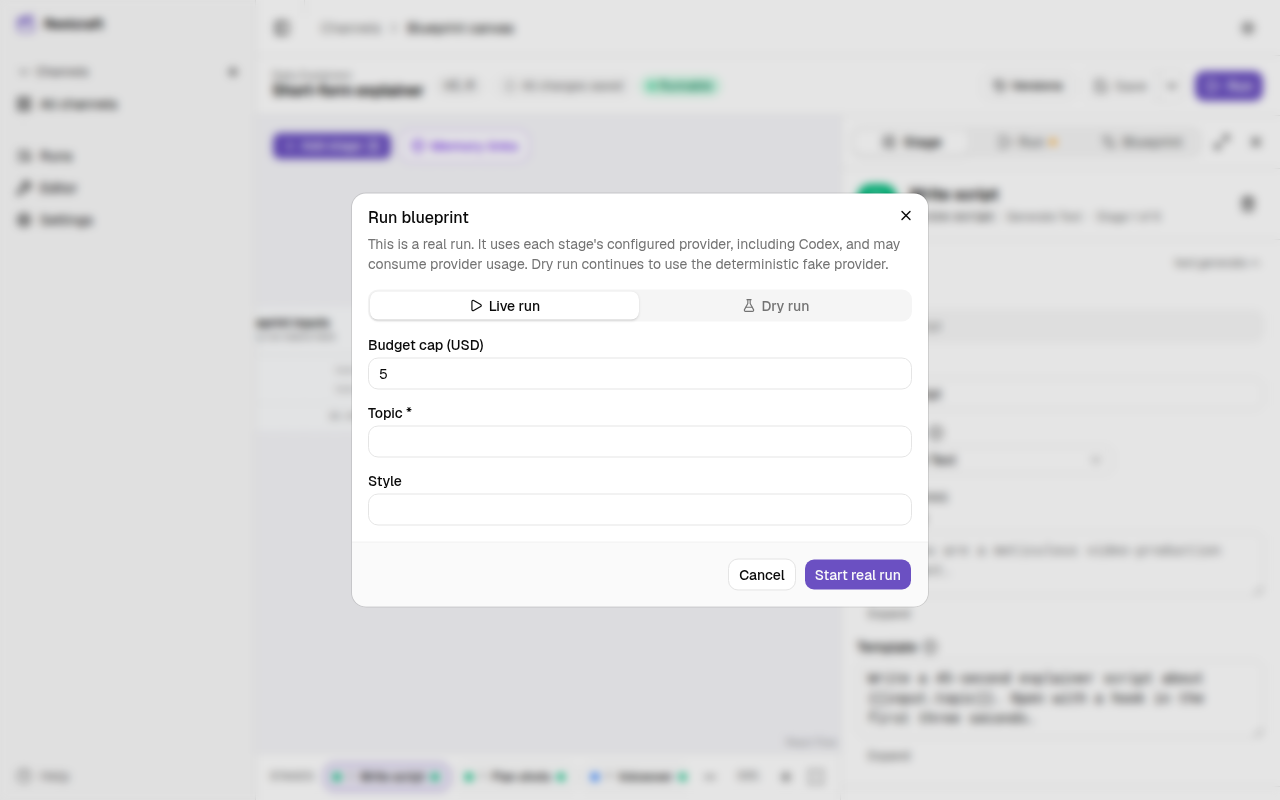
- In the dialog, choose the Saved version to run. The latest is selected. Keep Live run selected and set the Budget cap (USD). It starts as the version's run cap. The run never spends more than this unless you raise it. See Budget and costs.
- Fill in the blueprint's inputs. A * marks a required one:
- text inputs: type the text;
- data inputs: paste JSON, which must be valid;
- image, video and audio inputs: choose a file. An input that accepts
manyfiles lets you pick several.
- Select Start real run.
Reelcraft checks your entries first, and shows what to fix under each box, for example Topic is required. or Script must contain valid JSON.
The run page opens as soon as the run starts. See Run page.
The dialog reminds you: This is a real run. It uses each stage's configured provider, including Codex and Claude, and may consume provider usage.
What happens when you start
- Reelcraft creates the run, uploads your files, and freezes what it needs: the blueprint version, your inputs, the assets and the character. Changing an asset or a character afterwards doesn't change this run.
- It checks that everything the run needs still exists, such as the assets and the character. If something is missing, you're told, for example that a character was deleted.
- All stages begin Pending. It admits ready stages up to Concurrent branches, which defaults to two. Stage item concurrency and provider limits apply separately.
If starting fails
If a file upload or the start itself fails, the run is kept, in the Created state, and the dialog shows Run saved for retry: Run … remains in CREATED state. Retrying continues that run and will not create a duplicate. Fix the cause, such as your connection, and select Retry upload & run (or Retry start).
If the run can't start at all, the reason appears under Run could not start.
Other ways to start a run
- Run again on a production run's page opens the same dialog with that run's version, inputs and budget filled in. Files are picked again.
- Start test run on the canvas runs the canvas as it is. See Test runs on the canvas.