Test runs on the canvas
The canvas is for building and testing. Every run you start there is a test run: it runs what's on the canvas right now, saved or not. You never have to save just to try a change. Saving only creates a version. See Versions.
Production runs of a saved version start from the blueprints page and never show on the canvas. See Starting a run.
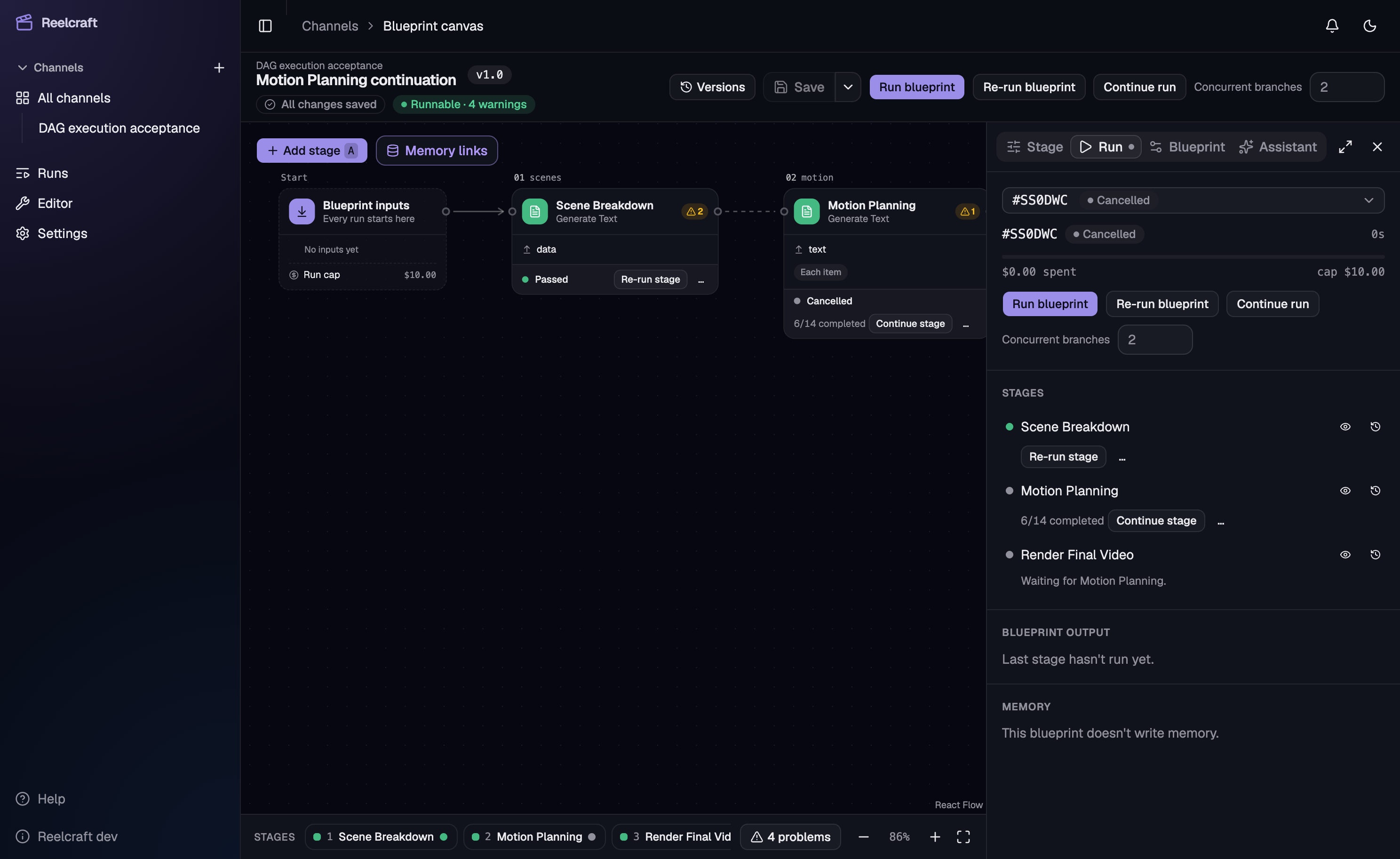
The run buttons
The canvas toolbar shows one main button, which changes with the test run's state:
| The test run is… | Main button | What it does |
|---|---|---|
| Not started yet, or finished | Start test run | Opens the inputs dialog, filled in with the last test run's inputs, and starts a new test run |
| Running | Pause | Lets the current work finish, then pauses |
| Failed, paused, stopped or partly run | Continue | Keeps every passed stage and runs the rest to the end, using your current canvas edits |
| Waiting for your review or input | none | Answer it with Review output or Provide input |
The ⋯ menu next to it holds:
- Stop run: ends the run. Finished outputs are kept, and you can Continue later.
- Start over (new test run): the same as Start test run, while a run is still open.
- Concurrent branches: how many stages may run at once (default 2).
If you added or removed stages, or changed the blueprint's inputs, roles or defaults, the open test run can't take those changes. Continue then starts a new test run that keeps every finished stage that is still valid and runs the rest, so you don't redo work. A note beside the button says so. Reconnecting stages is fine: Continue gives them their new connections when they run again.
When finished stages are out of date
If you edit a stage that already finished, it and the stages after it are marked Stale. Pressing Continue then asks:
- Regenerate stale stages: runs them again, which can cost money again.
- Keep results and continue: starts a new test run that copies those results as they are and carries on after them. Nothing is regenerated. Stages after the edited one were made from its older result, so use this when you're sure that doesn't matter. The log of each kept stage says its result was kept.
Stage buttons
Select a stage on the canvas or in the Run tab to see its buttons:
- Run this stage only: runs just this stage, using the outputs that already exist before it.
- In its ⋯ menu:
- Run up to this stage: runs any unfinished or stale stages before it, then this one, then stops.
- Run from this stage to the end: runs this stage and everything after it.
- Re-check output: shown only when you changed just the stage's checks or quality criteria. It checks the existing output again without generating it.
Stage buttons are hidden while the run is running, pausing or stopping. Progress, outputs and attempts stay visible.
Stale stages
When you edit a stage that already passed, it and the stages after it are marked Stale. Their outputs stay in history. Continue, Run up to this stage and Run from this stage to the end redo stale stages automatically. Run this stage only leaves them alone. Renaming a stage doesn't make it stale.
Confirmations
Most buttons start straight away. You're asked to confirm only when the action would replace work that already passed, or when a provider request may have been charged already. The confirmation lists the stages that will run and what they cost last time.
The Run tab
- The top line says what's happening, such as Running: Write the draft narration (4/12 done), or where it stopped, such as Failed at Write the draft narration: ….
- The recent-run selector switches between test runs. Open run page opens the full run page.
- Stages shows every stage with its status: Done, Running, Failed, Waiting for review, Not started, Stale. Click one to select it. The selected stage's buttons, View output and Attempts appear under the map.