Versions
Every time you save a blueprint, Reelcraft keeps a version of it: a copy that never changes. Runs always use a saved version, so you can keep editing without affecting runs that have already started.
Saving
Your edits on the canvas are kept automatically as you work, even if you close the tab or reload the page. While they differ from the last save, the top bar shows Unsaved changes.
To save them as a version, select Save (or press Ctrl or ⌘ + S). Versions are numbered like v1.3:
- The first save is
v1.0. - Save adds 1 to the second number:
v1.0→v1.1→v1.2. - Bump to v2.0 starts a new major version. Use it from the arrow next to Save, to mark a big change, such as a new style of video. It doesn't do anything else differently.
After a save you'll see, for example, Saved as v1.3 (runnable).
To throw away your unsaved changes and go back to the last save, select Discard in the top bar.
Edited elsewhere
Reelcraft never lets an out-of-date tab overwrite a newer save. If you have the same blueprint open in two tabs (or two browsers) and save in one, the other shows a bar when you switch to it: This blueprint was saved elsewhere (v1.3). Autosave pauses until you choose:
- If you hadn't changed anything in that tab, select Load v1.3 to show the new version.
- If you had unsaved edits there, select Keep my edits to keep working on them. They now count as changes to v1.3. Reelcraft doesn't merge them: saving makes a new version with your edits as they are, without what changed in v1.3. Or select Discard my edits to throw them away and load v1.3.
Save and Restore this version from the out-of-date tab are refused, with a message that the blueprint was saved elsewhere, until you choose, so nothing is overwritten by accident.
Unsaved edits can also be left behind on an older version, for example when you add a package as a new version of a blueprint with unsaved edits, or after an update. When you open that blueprint, the canvas shows its latest version and the bar Unsaved edits based on v1.2 were found. Select Open them to put them on the canvas (replacing what's there), or Discard to delete them. Edits from before Reelcraft tracked this say "based on an earlier version".
Runnable or not
Reelcraft checks the blueprint while you edit. The top bar shows:
- Runnable: it has no errors, so it can run.
- Not runnable yet: it has at least one error. It also says how many problems there are.
Errors and warnings appear on the stages they belong to, as ✗ and ⚠ counts on the stage cards. Open a stage to see the messages, or select the problems button at the bottom of the canvas to see them all and jump to a stage. Problems with the blueprint as a whole appear in a bar above the canvas. See Validation messages for the common ones.
You can still save a blueprint that isn't runnable, for example to keep work in progress, but you can't run that version.
Test runs and production runs
You don't need to save to try a change. Start test run on the canvas runs the canvas as it is, saved or not, as a temporary copy that doesn't appear in your versions. See Test runs on the canvas.
Production runs always run a saved version. Start one with Run on the blueprint's card in the channel's Blueprints tab, and pick the version. See Starting a run.
Look at an older version
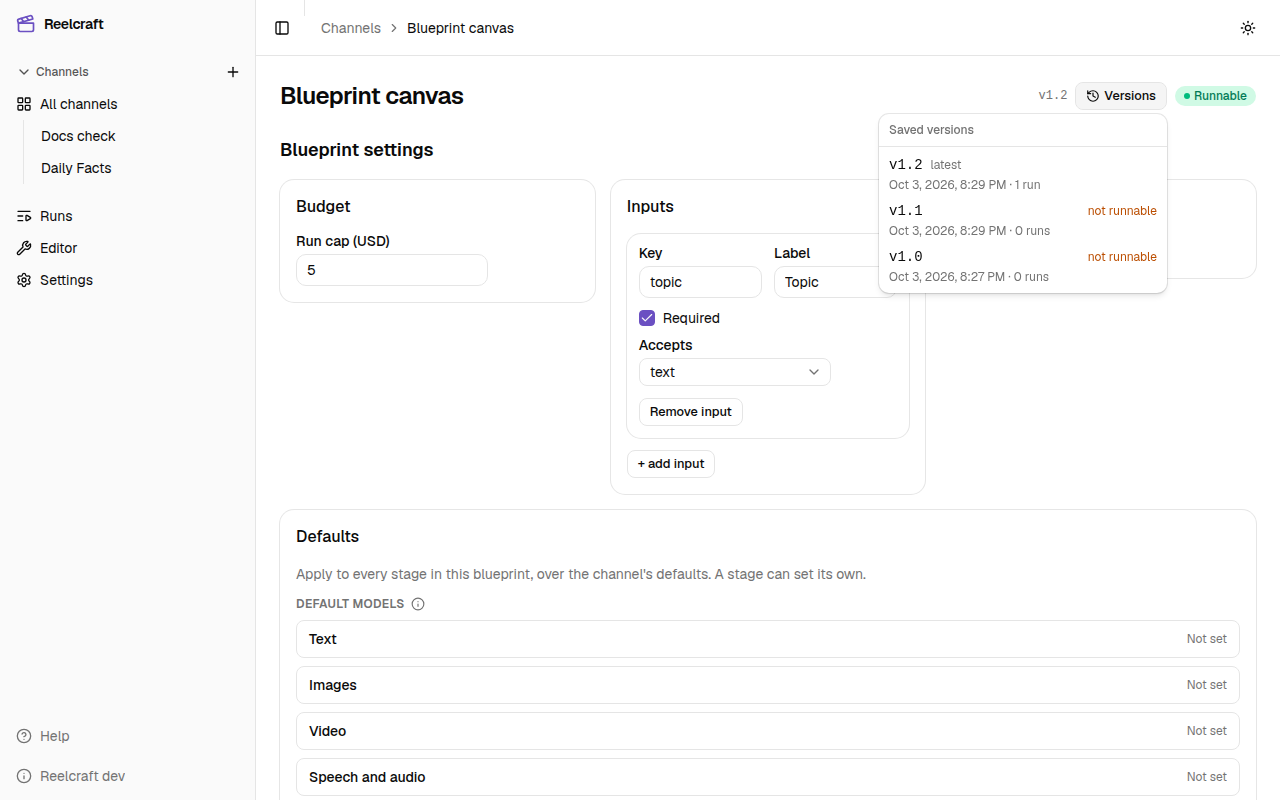
- Select Versions in the top bar. The menu lists every saved version, newest first, with:
- when it was saved;
- how many runs used it;
- latest next to the newest one;
- not runnable for versions that weren't runnable.
- Select a version.
The canvas shows that version, read-only, with the note Viewing v1.1 (read-only). You can open its stages to see their settings, but you can't change them. Run, Save and the Run tab are off. Your unsaved changes are kept, out of sight. Select Back to latest to return to them.
Restore an older version
- Open the version from the Versions menu.
- Select Restore this version, then Restore.
Restoring saves a new version with the older version's content. For example, restoring v1.1
when the latest is v1.4 saves v1.5. Nothing is overwritten, so you can always go back. If you
had unsaved changes, they're discarded; the confirmation warns you when that's the case.