Outputs and downloads
Every stage that finishes leaves an output. You can look at any of them from the run page, while the run is going or long after.
View an output
Select Output on a canvas card or View output in its Run tab, and the stage details workspace opens beside the canvas. On the run page, select a stage in the pipeline to open its details panel; see Run page.
- Output shows the accepted artifact, linked to its producing attempt. Iteration items appear in a searchable, numerically ordered navigator, including unfinished items. Progress is separate from attempts.
- Attempts shows candidates, duration, cost, check results, QC/review feedback, and expandable raw logs. Rejected and historical candidates are identified separately from the current accepted output.
- Inputs & dependencies (on the canvas) shows recorded inputs, source artifact/memory versions, and the rendered prompt. On the run page the same details are under an attempt, in What this attempt received. Missing historical fields say Not recorded.
- Memory groups keys by producer and item. Search and filters narrow large collections; version history expands without replacing current values.
Changing tabs or expanding the panel preserves the selected item and attempt. Re-run item uses the same backend eligibility and confirmation rules on both surfaces. A disabled stage's stored outputs remain inspectable, but are unavailable to descendants until the stage is enabled again.
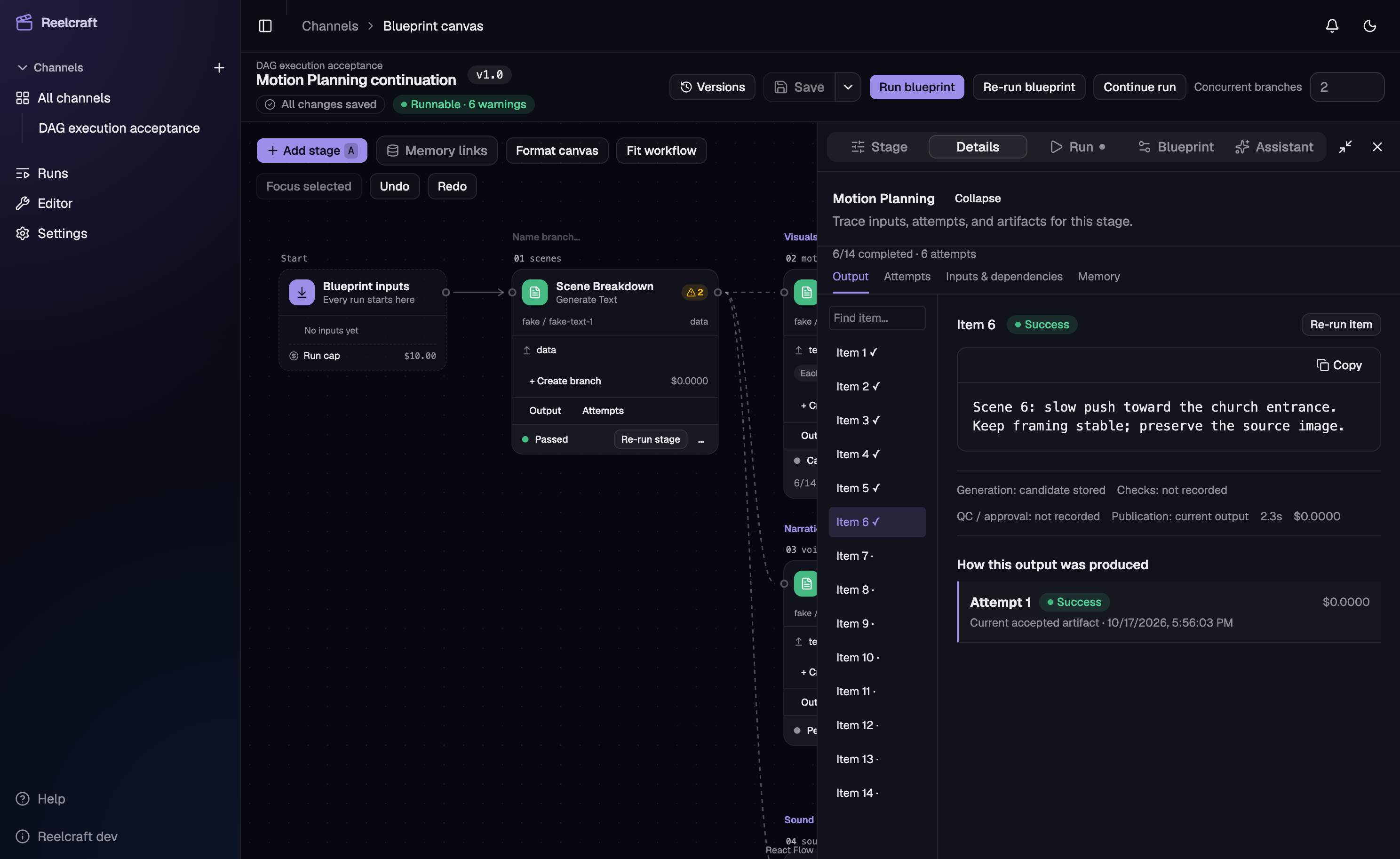
How each kind of output looks:
| Output | What you see |
|---|---|
text | The text, with a copy button |
data | A collapsible Tree of its fields, or the Raw JSON. Hover a field to copy its path, ready for a binding or a memory write |
timeline | The Lanes: tracks of clips, text and captions along a time ruler, or the Raw JSON |
media.image | The picture. Select it to open it full size |
media.video | A player |
media.audio | A player |
file.subtitles | The first cues of the file, and a Download link |
Images, video and audio have a Download button.
A stage can also have attachments: extra files that came with its result, such as screenshots from Automate Browser. They're listed under the output as links.
Outputs that are no longer available
An output can be replaced when a stage is redone. See Retries. The old version is marked Stale, and the stage shows its new output once it has one. A file whose storage was cleaned up, for example after its channel was deleted, is gone for good.
The final video
The Final video at the top of the run page is the output of the last stage, in blueprint order, that passed and made a video. It appears as soon as that stage finishes, and has its own poster image.
So the order of stages matters: put the stage that makes the finished video last. If a blueprint ends with a Render Timeline or Concatenate Video stage, its video is the final one. A blueprint that never makes a video has no final video, and that's fine.
To keep a video, use the Download button on the video, or on the stage's output.
Where files live
The files a run makes are stored in Reelcraft's own storage, inside its Docker volume, so back up the volume to keep them. Deleting a run's channel or blueprint removes its files after a retention period, by default 30 days. See Channels.