Run page
Open a run from the Runs list, from a channel's Runs tab, or right after you start it. The page updates by itself while the run is going.
The header
- Run and its id, with a coloured status. See Run statuses.
- A line saying what the run is doing, such as Running: ElevenLabs audition (8/31 done), or where it failed.
- Memory opens everything the run has saved.
- One main button for the run's state: Pause while it runs, Continue after a failure, pause or stop, and Run again once a production run has finished. Run again opens the run dialog with this run's version, inputs and budget filled in.
- The ⋯ menu: Stop run and Concurrent branches (how many stages may run at once, default 2).
- Open canvas opens the blueprint. For a test run it opens that test run; production runs never appear on the canvas.
Stopping keeps finished work, and you can continue later. The run shows Pausing while running work finishes and Cancelling while interrupted requests are wound down. See Pause, resume and cancel.
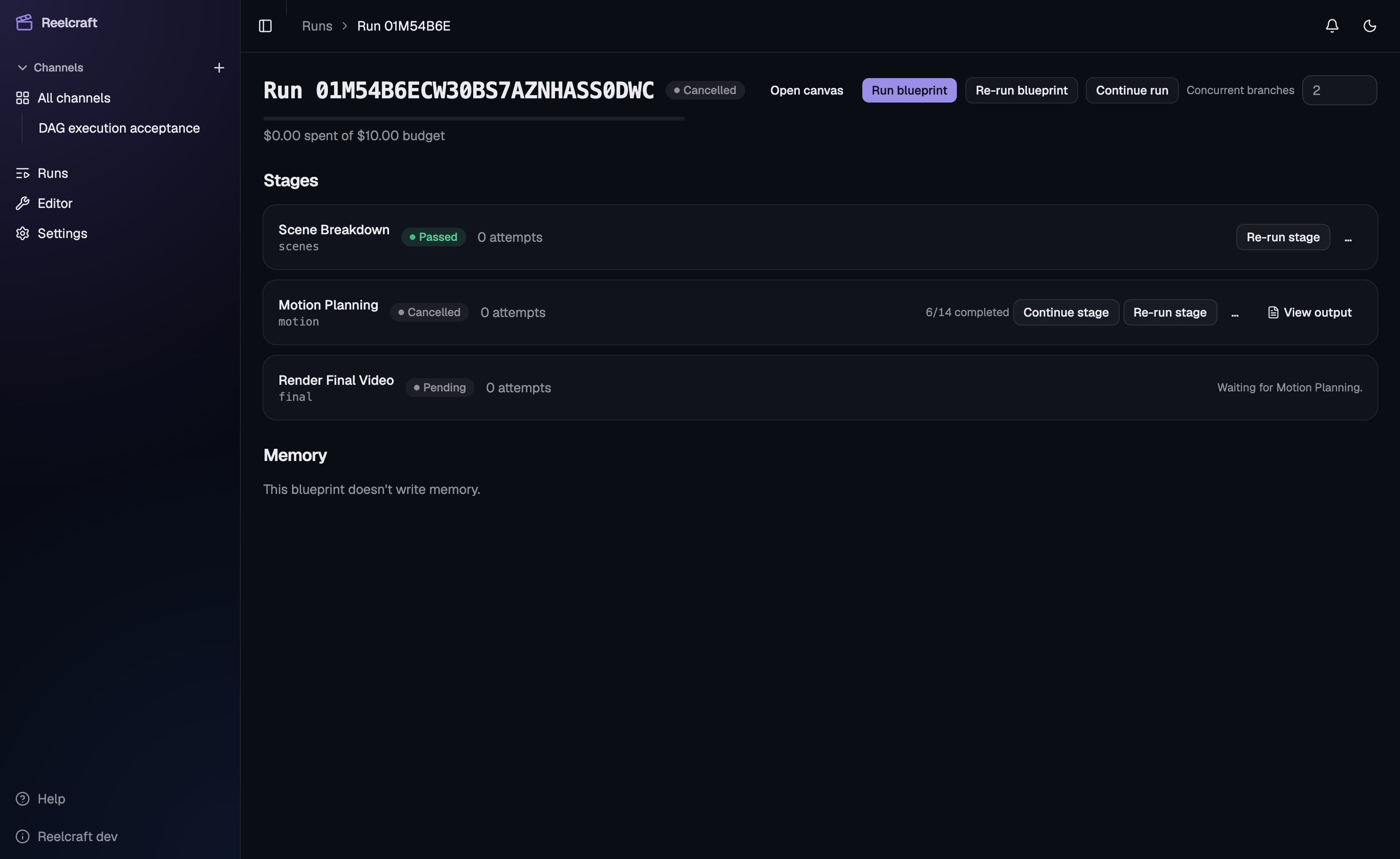
The budget bar
A bar shows how much of the run's budget is used, with a line below it such as $1.20 spent of $5.00 budget. Raise budget appears when raising it can help. See Budget and costs.
If the run is paused because of money, an amber line says which limit was hit:
- Paused: the next step would go over the run budget.
- Paused: stage "…" reached its own Stage cap ($…).
A run waiting for Flow credits says Paused: every Flow account is out of credits. and when it resumes by itself.
Final video
When a run has made a video, it plays here. It's the video made by the last stage, in blueprint order, that produced one. See Outputs and downloads.
What needs you, what is running, what is next
Below the header, three things answer "where is my run?":
- A progress bar for the whole run, such as 14 of 31 stages done. Green is done, blue is running, amber is waiting for you and red is failed.
- A bar that lists what needs you, shown only when something does: the stages that failed, each as a button that opens it, and the stages Waiting for you with their button: Review output, Provide input or Open editor.
- Running now, Up next and Finished recently. Up next lists the stages that start as soon as what they wait for is done. After a failure it says Blocked: fix the failed stage, then press Continue.
Pipeline
The run as a graph, left to right. Stages are grouped into phases, such as Research, Voice and Render, so a run with dozens of stages still fits on one screen. Each phase box shows:
- its name and how many of its stages are done, such as 4/4;
- one small square per stage: green is done, blue is running, amber is waiting for you, red is failed, an outlined square is up next and grey has not started;
- a short note when something needs attention, such as Failed at 11 or Running 9.
Lines join each phase to the ones it waits for. The line into a running phase is dashed. Select a phase to list its stages, and select a stage to open its details. A phase with a single stage opens that stage straight away.
You choose the phases: set Phase in the stage's Basics. Stages with no phase get a box of their own. See Stages.
Stage details
Selecting a stage opens a panel on the right with its status, how long it took and what it cost. A failed stage shows why it failed. A stage waiting for you has its Review output, Provide input or Open editor button here too, and the stage buttons appear here:
- Run this stage only, with Run up to this stage and Run from this stage to the end in its ⋯ menu. A production run always uses its saved version. A stage that can't run yet says why, such as Waiting for …. Stage buttons disappear while the run is Running, Pausing or Cancelling. See Continue and re-run work.
The panel has three tabs. A failed stage opens on Attempts, any other stage on Output.
- Output: what the stage made, such as the text, the images, the audio or the video. A stage that repeats for many items shows a button per item, with ✓ once it has output.
- Attempts: every try the stage made, newest first. Each shows its outcome, such as Success, Check Failed, Qc Failed, Provider Error or Rejected, the time and the cost. Open one to see the review note, the checks and quality review, What this attempt received, and its Event log. The attempt that became the stage's output says Used as the stage output.
- Memory: Read lists what the stage took from earlier stages, with a link to the stage that made each one. Wrote lists what it saved for later stages.
The event log includes the exact prompt that was sent to the model for the attempt, and how every input was worked out. It's the best place to look when a stage did something you didn't expect.
Memory
The Memory button in the header opens every value stages have saved so far, grouped by stage. Search and the filters narrow large collections, and Version history shows earlier values. If the blueprint saves nothing, it says No matching memory values. See Connecting stages.