When a run needs you
Some runs stop and wait for you. Their status says so, and the stage waiting shows a button. A run costs nothing while it waits, and you can leave it as long as you like.
| The run says | Because | What to do |
|---|---|---|
| Paused Approval | A stage with human approval finished, or quality control could not run | Review output |
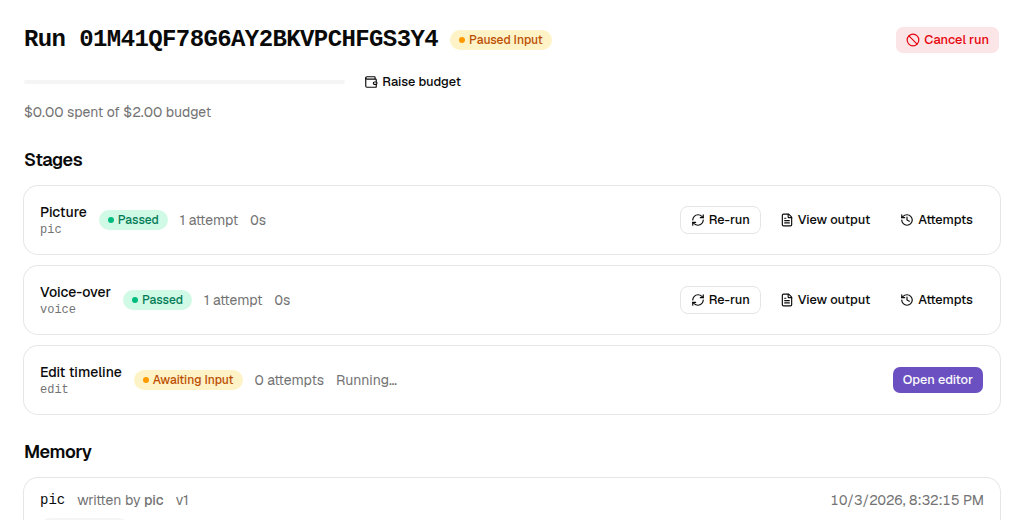
| Paused Input | A Human Input or Human Timeline Edit stage is waiting | Provide input or Open editor |
| Paused Budget | The next step would go over a limit | See Budget and costs |
| Paused Quota | Every Flow account is out of credits (Generate Video with Flow) | Wait: it resumes by itself, or select Continue |
Review output
- On the stage waiting for approval, select Review output. A panel opens, titled Review output, showing the output, the attempt, what it cost and the item it belongs to when the stage iterates.
- Look at the output. If it's no longer available, the panel says Output is no longer available.
- Either:
- select Approve: the run continues;
- or select Reject.
Several items waiting
When a stage that iterates runs its items at the same time, more than one item can be waiting for you. Review output shows one item and, above it, which other items are waiting. Approve or reject it, and the sheet moves on to the next. The run carries on once no item is left waiting; a rejected item is redone then, together with the next group.
Several things waiting
When stages run side by side, more than one stage can be waiting for you at once, for example one for approval and another for input. The run finishes whatever was already running, then pauses, and shows the state of the first kind waiting (Paused Approval before Paused Input). Each waiting stage has its own button. Answer them in any order: the run only carries on once the last one is answered. If you retry or edit a stage while others wait, the run starts again and pauses again straight away if something is still waiting.
Waiting stages on a run that stopped
A run can stop for another reason while a stage is still waiting for you, for example when a different stage fails. The waiting stage shows Waiting for review (or Waiting for input) and keeps its Review output or Provide input button. You can answer it right away: your answer is saved and the run stays as it is (for example Failed). Nothing runs until you select Continue, which then picks up your answers along with everything else.
When quality control could not run
If the quality control judge couldn't be reached or didn't answer, the stage doesn't fail. The run pauses as Paused Approval and Review output opens with Quality control could not run and the reason. The output shown has not been judged. Choose:
- Retry QC: judge the same output again. Nothing is generated again, so it costs only the judge call. If QC still can't run, the run pauses again. If it rejects the output, the stage redoes it with the critique, as for any QC rejection.
- Approve: accept the output without a QC verdict.
- Reject: redo the work, as below.
Rejecting
Rejecting redoes the work, so Reelcraft shows you what it will cost first.
- Optionally write a Rejection note: Explain what should change on the next attempt. It's added to the next attempt's prompt as feedback, so be specific. See Prompts.
- Select Reject. A summary shows Confirm rejection, with the Affected stages and the Estimated rerun cost.
- Select Confirm rejection, or Back.
Which stage is redone depends on the stage's Retry stage setting: by default the same stage, or an earlier one you chose. You can reject as many times as you like, and each rejection redoes the work.
If the output came from quality control running out of attempts, the review works in the same way: approve the last output, or reject it with a note that becomes the next attempt's feedback.
Provide input
On a Human Input stage, select Provide input. The dialog is titled Provide input for the stage:
- for a text output, type the text;
- for a data output, fill in the Form, or switch to Raw JSON to paste a value. Fields marked * are required.
Select Submit. If the value fails the stage's checks, you're told why and can try again. Invalid JSON appears if the JSON can't be read.
Open editor
On a Human Timeline Edit stage, select Open editor to arrange the timeline. It's on the stage here and on its card in the blueprint canvas. See Timeline editor.
Reminders
Reelcraft notifies you when a run needs you: from the bell at the top of the page, and as a pop-up while you're looking at Reelcraft. If a run is still waiting after 24 hours, you get Still waiting for you, and again at 48 hours. You can also check the Runs list for runs in a Paused state.